A tell from drone photos
Tell Sultan is a settlement mound in Syria, about 25 m high and 300 m across. On 25 September 2026 it was photographed by a small DJI drone (camera FC8482, 4032 × 2268 pixels, 24 mm equivalent). This tutorial uses the 57 photos of its last flight, taken about 110 m above the ground: 50 looking straight down and 7 oblique ones at the end. From them you will make, in about 7 minutes on a laptop:
- a dense cloud of 3.3 million points and a textured model of the tell;
- a DEM at 19 cm and an orthophoto at 3.6 cm;
- contour lines, a relief visualisation that brings out faint features, a section across the mound drawn to scale.
There are no ground control points: the survey is placed by the GPS of the drone, within a few metres in position and height. Shape, distances, areas and volumes are right; to put the survey on a national grid within centimetres you add targets measured with a GNSS receiver (see the desktop interface, pane Reference).
The data
The photos of this tutorial are not public: follow it with your own drone photos of a site - a few dozen overlapping photos taken straight down, with the GPS positions the drone writes in them - put in a folder. The steps, the dialogs and the defaults are the same.
Coordinates
With GPS positions the program places the survey in the UTM zone of the site. In the screenshots the survey has been moved to a local system (the coordinates shifted, the heights kept), so that the position of the site is not published.
1. A new project with the photos
Start the program and choose New project on the start page (or File > New project), then
File > Save as... to give it a name next to the photos folder (tell_sultan.ppg): from now on
every step saves the project by itself.
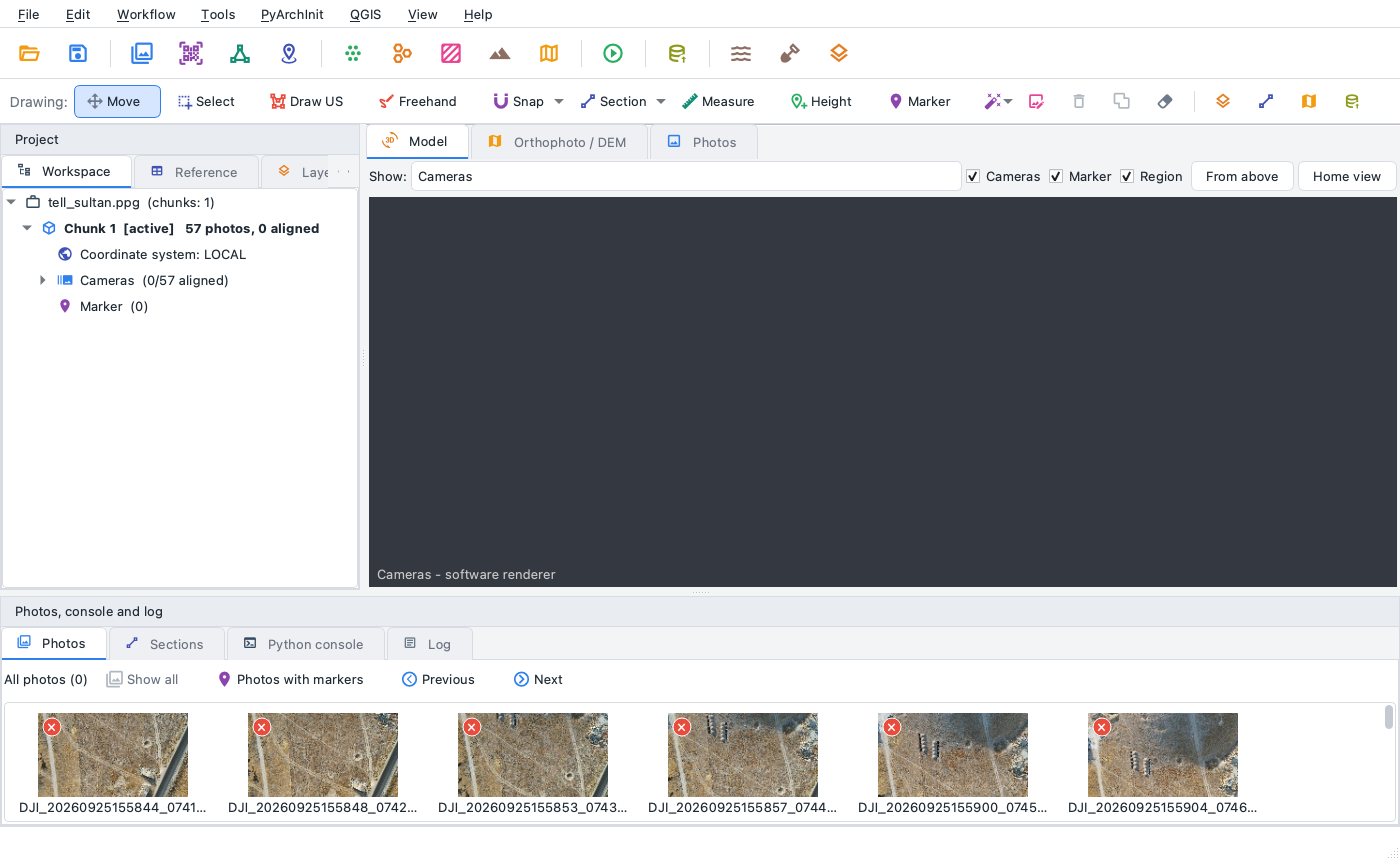
Workflow > Add folder... and choose the folder foto. The 57 photos appear in the Photos pane at
the bottom, the Workspace on the left lists the chunk with its cameras.
2. Aligning the photos
Workflow > Align photos...
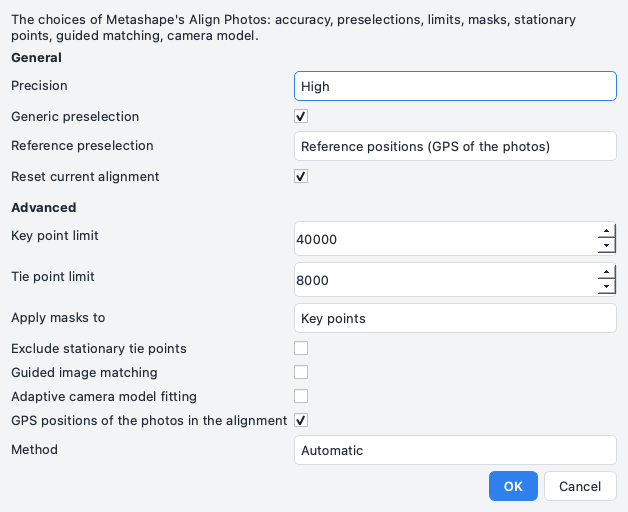
The dialog has the choices of Metashape's Align Photos, and the defaults fit a drone survey: Precision High (features found on the photos at half size), Generic preselection on - with more than 40 photos the pairs that overlap are found first on reduced photos, and only those are matched in full - and Reference preselection on the reference positions, the GPS of the photos. Under Advanced: 40,000 key points and 8,000 tie points per photo, the masks applied to the key points, the stationary points of a turntable, the guided matching, the adaptive camera model fitting, the GPS positions of the photos holding the block when the photos are placed one after the other, and Method Automatic: from 40 photos up all the cameras are placed at once (global alignment), much faster than one photo after the other. Reset current alignment unticked adds the photos that came later to an alignment there already is. The program computes where every photo was taken and how the lens bends the image and, since the photos carry GPS positions, places the block in the UTM zone of the site.
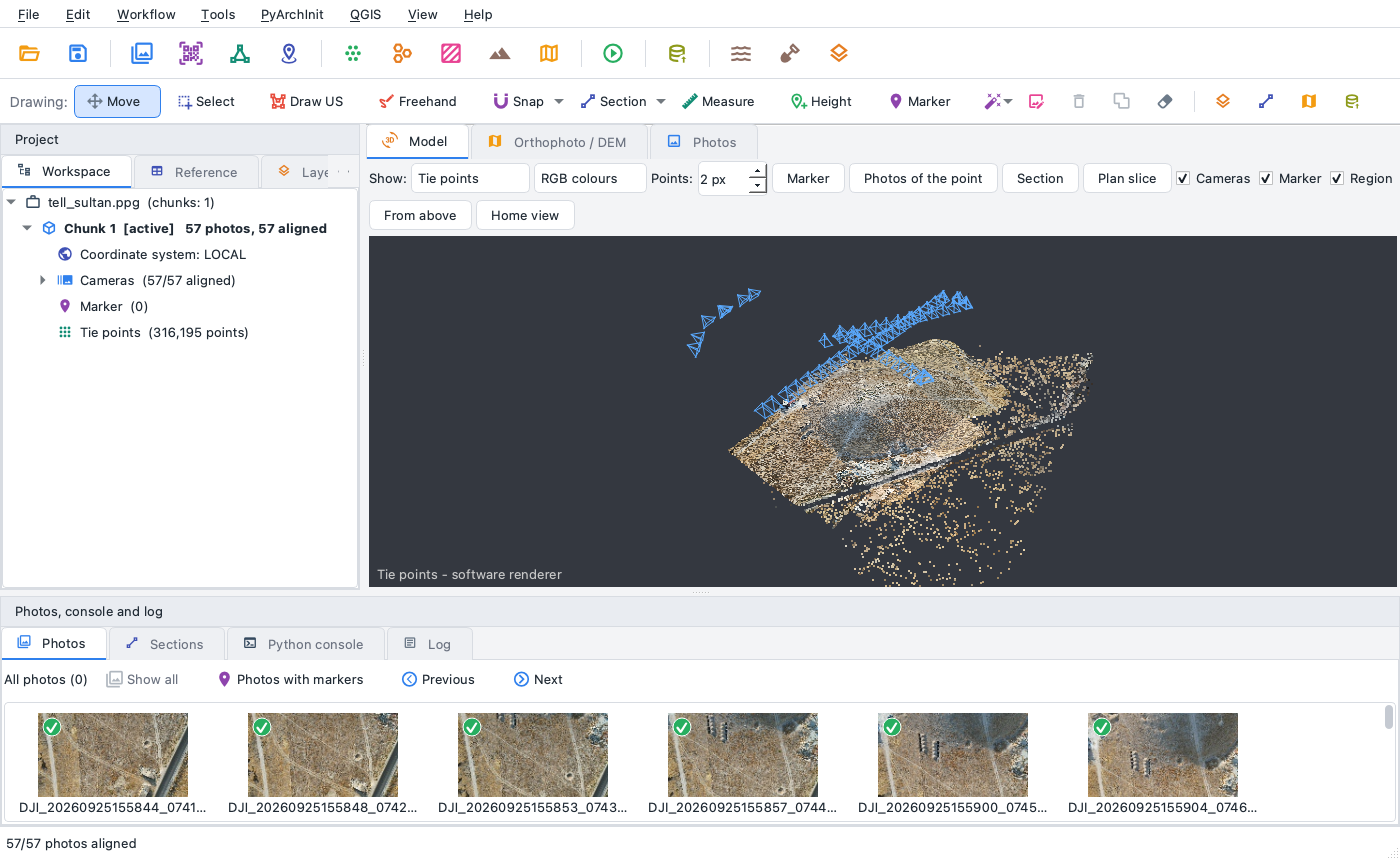
Here: 57 photos of 57 aligned in about three minutes, 316,000 tie points. The Model view shows the tie points and the camera positions over the mound: the long strips of the flight and the oblique photos around it.
The Reference pane lists, for every camera, its GPS position and where the alignment puts it, with the difference: a few metres are the precision of the drone GPS, not errors of the survey.
3. Dense cloud
Workflow > Build dense cloud...
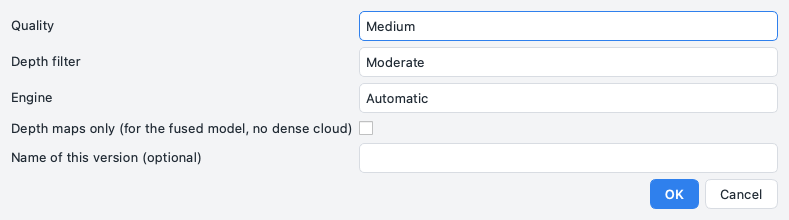
Quality Medium computes a depth map for every photo at a quarter of its size, Depth filter Moderate removes the isolated points. With the engine Automatic a survey from the air - photos whose GPS positions spread over the site - is matched by multi-view PatchMatch (a plane per pixel, checked against several photos at once, in the native core on every CPU core): smooth slopes without the steps of two-view stereo. In less than two minutes, 3.3 million points, coloured from the photos; each point keeps how many depth maps confirm it (confidence).
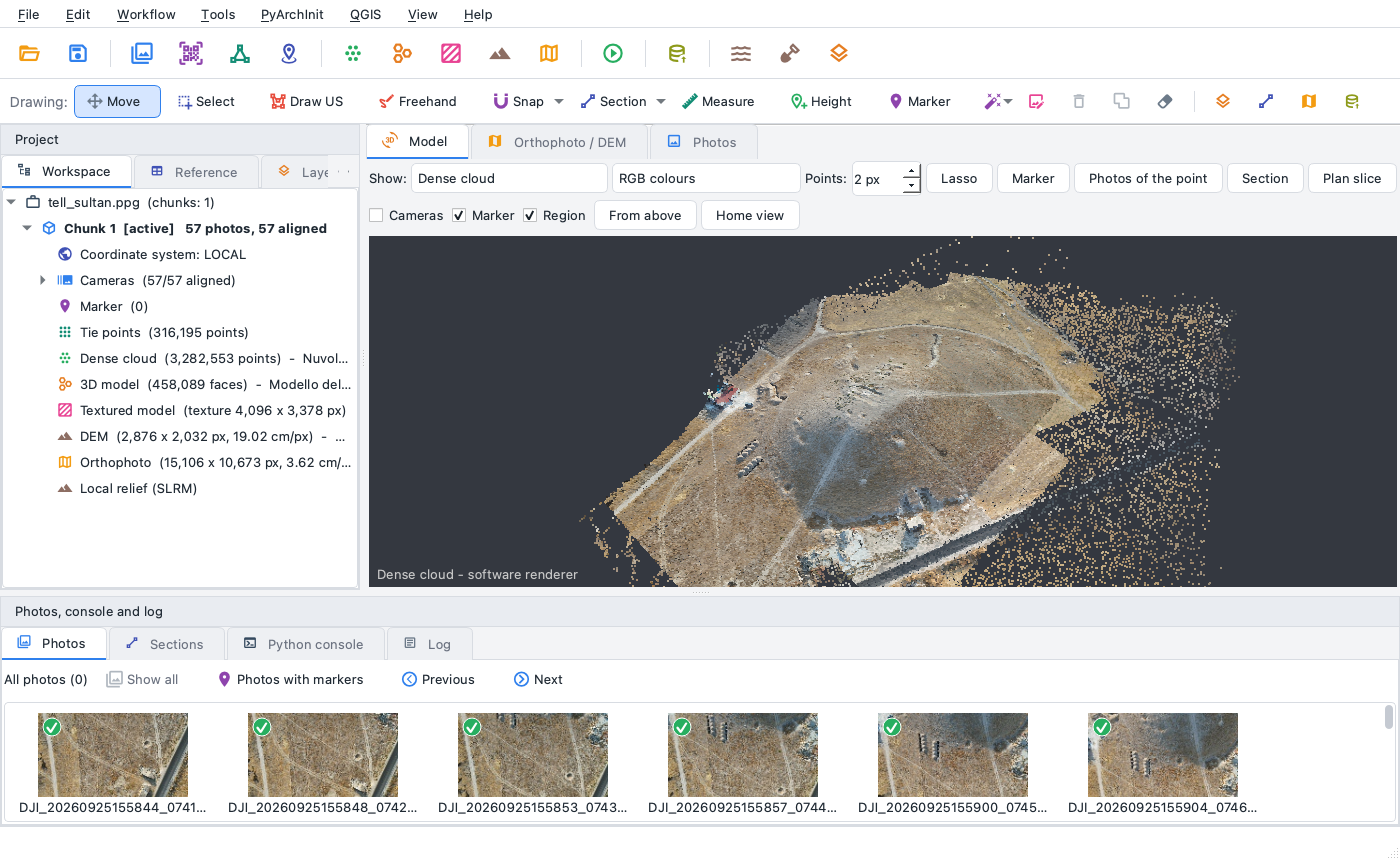
4. Model and texture
Workflow > Build model... (source Dense cloud, surface Arbitrary, Medium faces) makes a mesh of 448,000 faces in 24 s; Workflow > Build texture... paints it from the photos in 27 s.
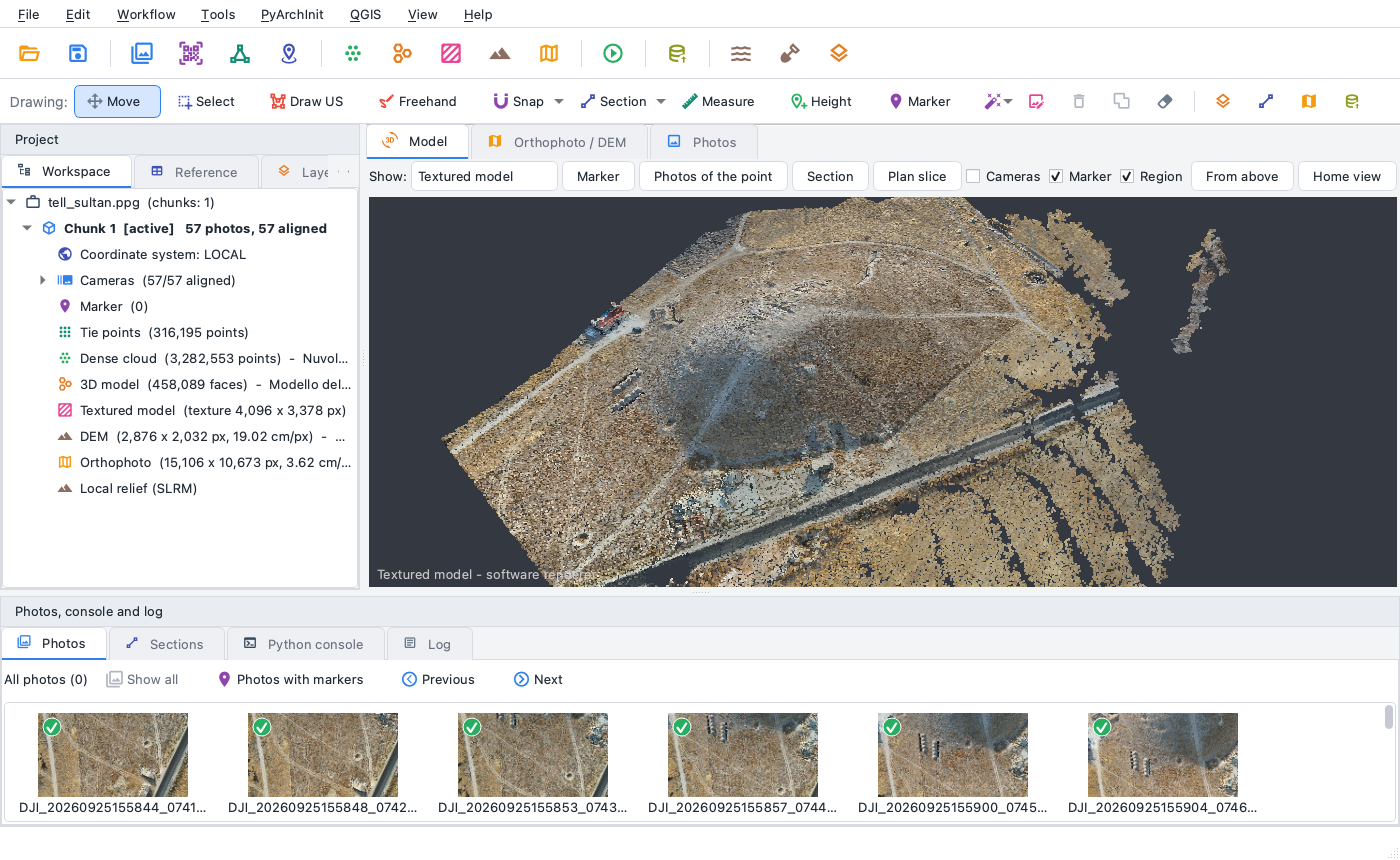
5. DEM and orthophoto
Workflow > Build DEM... with the defaults: from the dense cloud, the resolution chosen from the density of the points (19 cm here), the single-cell spikes left by stray points removed, the gaps interpolated: a few seconds.
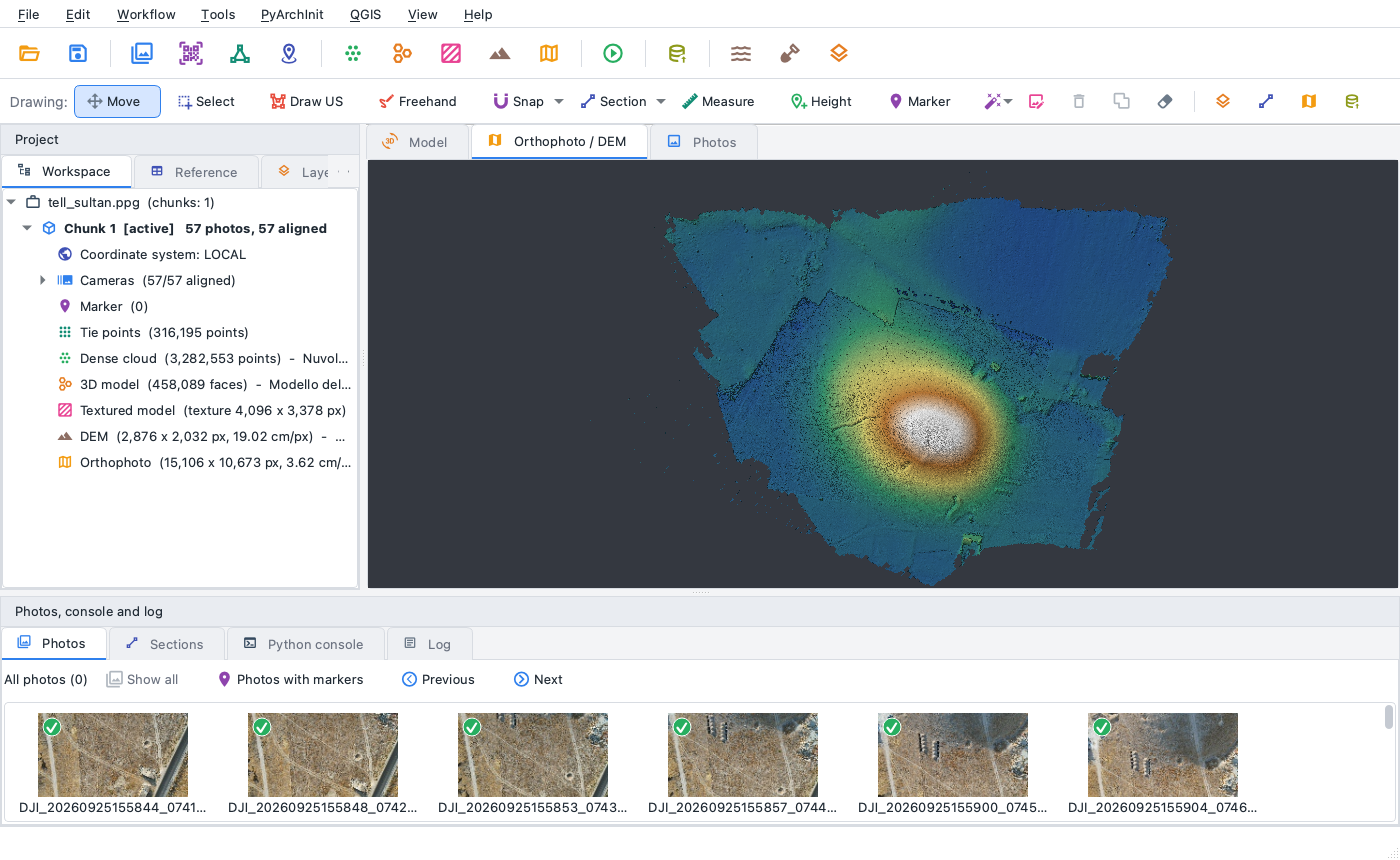
Workflow > Build orthophoto...: the photos projected on the DEM, each cell taken from the photo that sees it most from above, seamless blending, colour correction of the photos, small holes filled. Half a minute for an orthophoto of 15,196 × 10,753 pixels at 3.6 cm.
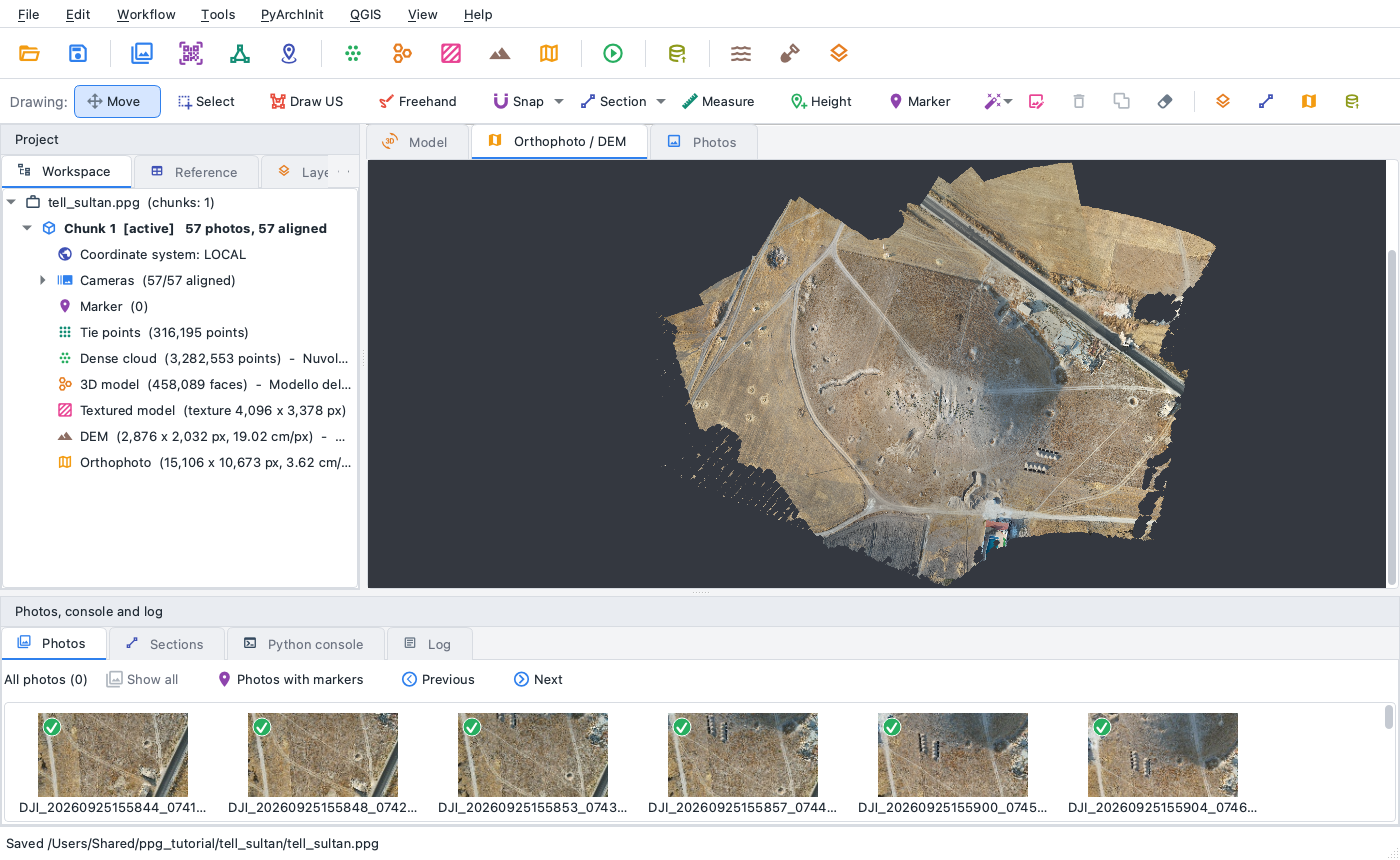
The Orthophoto / DEM view reads the full-resolution file when you zoom in: the detail of the photos stays visible.
6. Contour lines
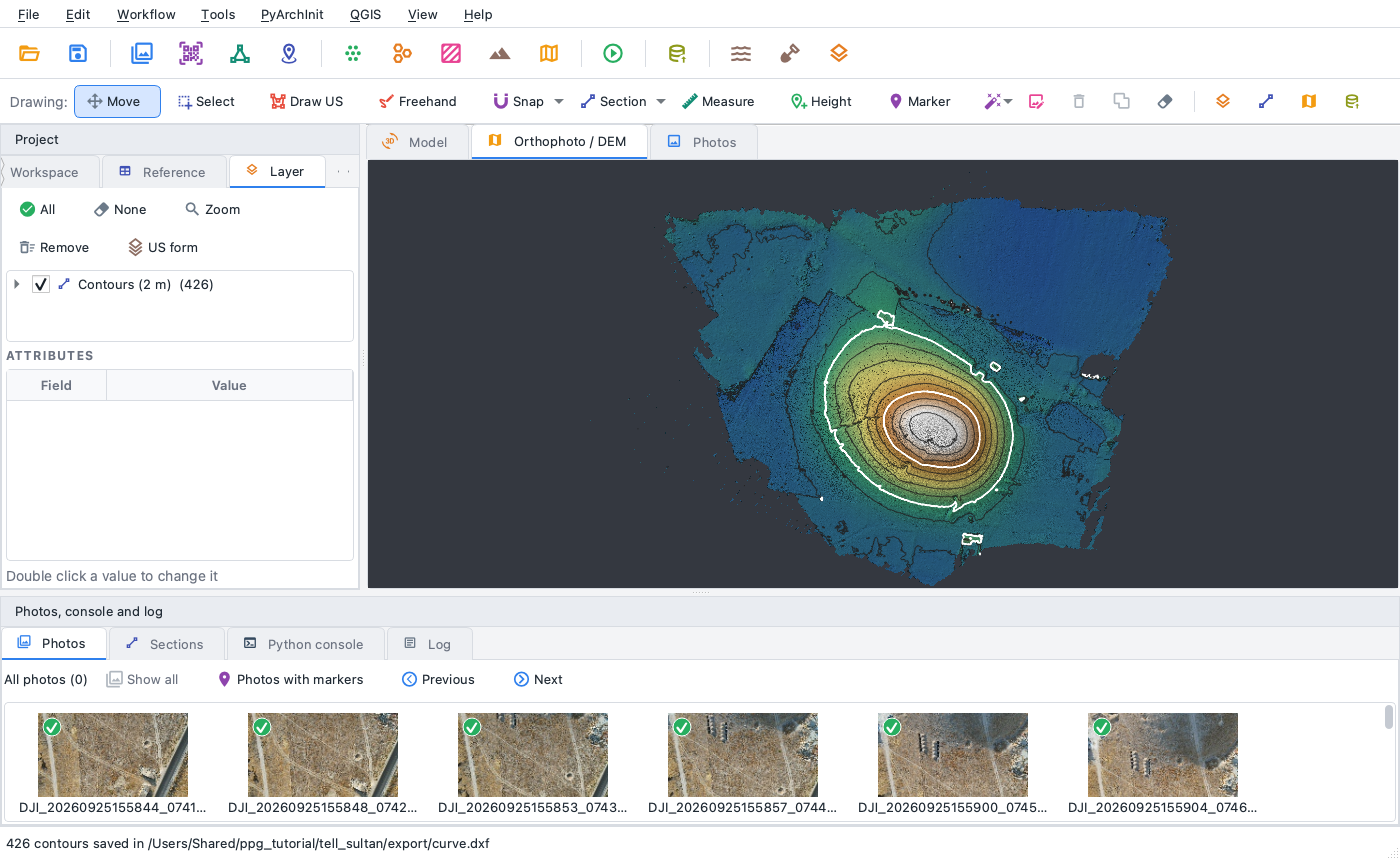
Tools > Contour lines... suggests an interval from the height range of the DEM (2 m here), an index contour every 5, and saves them as DXF, GeoPackage or GeoJSON. They are also drawn as a layer over the DEM.
7. Relief visualisation
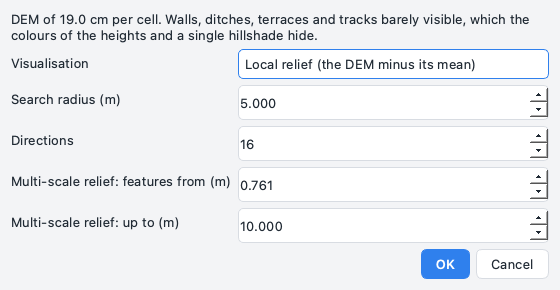
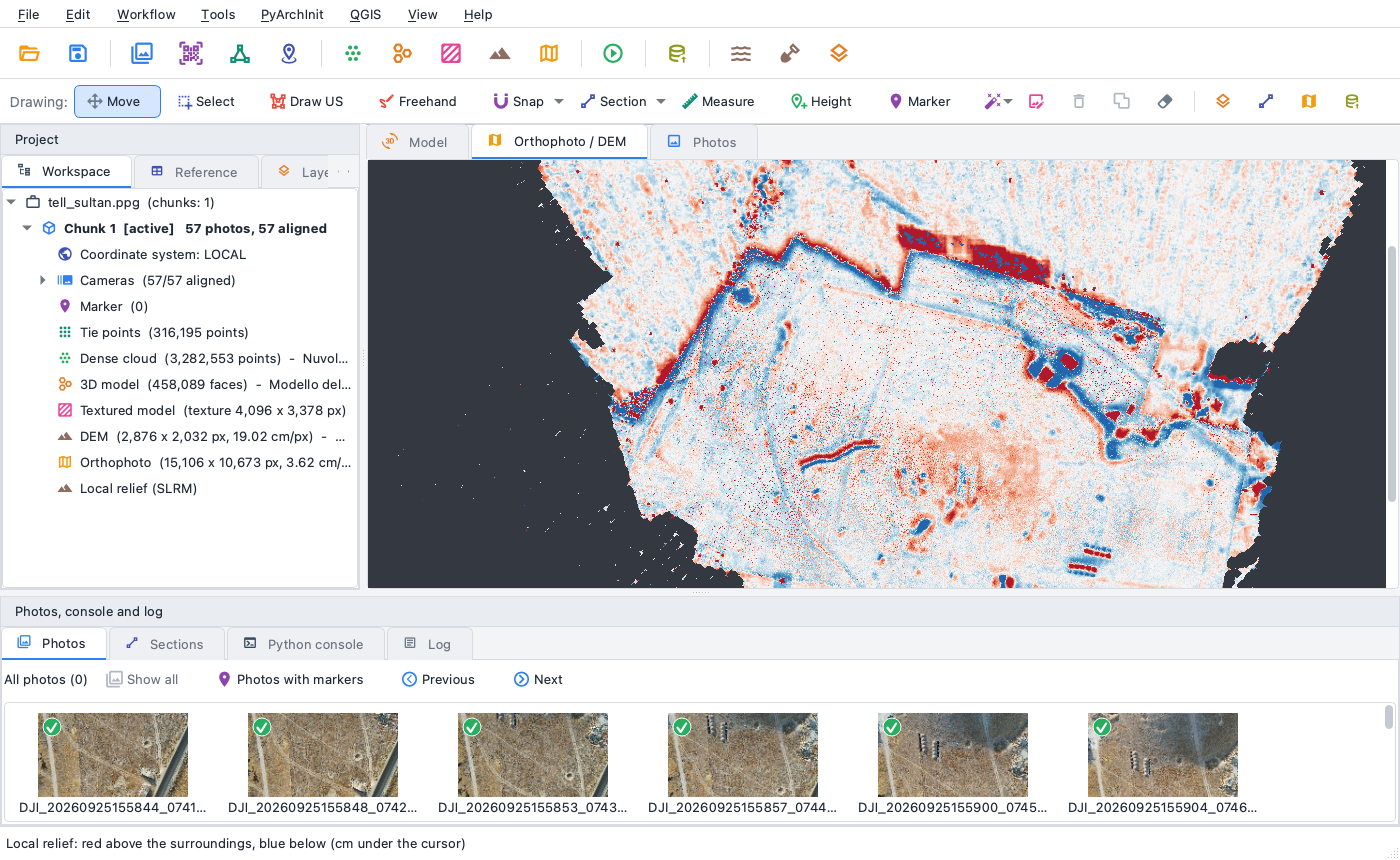
Heights in colours and a single hillshade hide what is a few centimetres high or deep: walls under the surface, terraces, pits, tracks. Tools > Relief visualisations... offers the sky-view factor, positive and negative openness, local and multi-scale relief and a hillshade lit from 16 directions. Here the local relief model (SLRM): the DEM minus its mean over the search radius, red where the ground stands above its surroundings, blue where it lies below.
On the mound: the curved trench on its western slope, pits, the rectangular structures and the edges of the fields around it; the cursor gives the height above the surroundings in centimetres.
8. A section across the tell
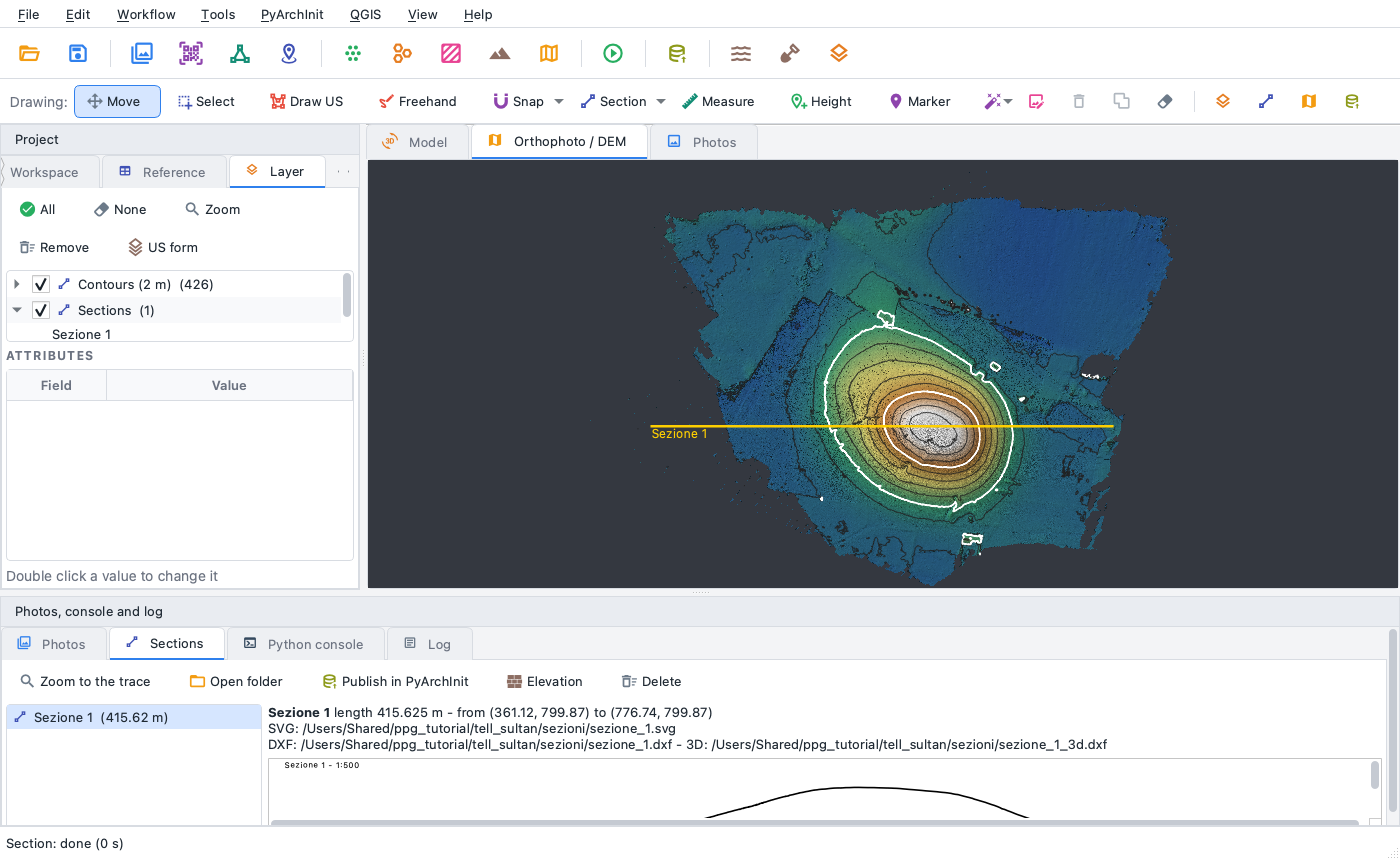
The Section tool of the drawing bar: two clicks on the DEM, from west to east across the top of
the mound. The program cuts the model along the line and writes the drawing at scale (SVG), the
profile (DXF) and the 3D line (DXF) in the folder sezioni next to the project; the Sections pane
at the bottom shows it.
9. Taking the results away
- File > Export: orthophoto and DEM as GeoTIFF (also Cloud Optimized), the dense cloud as LAS, LAZ or PLY, the model as OBJ, PLY or GLB, the cameras, and everything cut by a box or a polygon.
- QGIS > Open in QGIS (live link): orthophoto, DEM and the drawn layers in a QGIS project kept up to date.
- File > Generate HTML report...: photos, alignment, errors and products in one page.
- PyArchInit > Publish orthophoto / DEM / model...: the products as documentation of a site (PyArchInit).
The same from the command line
ppg new tell_sultan.ppg
ppg add-photos tell_sultan.ppg foto
ppg align tell_sultan.ppg                    # --quality high
ppg dense tell_sultan.ppg                    # --quality medium --filter-mode moderate
ppg mesh tell_sultan.ppg                     # model and texture
ppg dem tell_sultan.ppg
ppg ortho tell_sultan.ppg
ppg export tell_sultan.ppg --dem dem.tif --ortho ortofoto.tif --cloud nuvola.laz --report report.html
The same in Python
import pyarchinit_photogrammetry as ppg

doc = ppg.Document()
chunk = doc.add_chunk()
doc.chunk = chunk
doc.save("tell_sultan.ppg")
chunk.add_photos(["foto"], recursive=True)
chunk.match_photos("high")
chunk.align_cameras()
chunk.build_depth_maps("medium", "moderate")
chunk.build_point_cloud()
chunk.build_model(source="point_cloud", face_count="medium")
chunk.build_texture(4096)
chunk.build_dem()
chunk.build_orthomosaic()
doc.save()
chunk.export_dem("dem.tif")
chunk.export_orthomosaic("ortofoto.tif")
Times
On an Apple M4 Pro (8 performance and 4 efficiency cores, 24 GB), with the desktop application:
| Step | Time |
|---|---|
| Alignment (57 photos) | 3 min 6 s |
| Dense cloud (PatchMatch) | 1 min 51 s |
| Model | 24 s |
| Texture | 27 s |
| DEM | 6 s |
| Orthophoto | 28 s |
| Contour lines, relief, section | 8 s |
The same photos with Metashape Pro and ODM: see the benchmark.